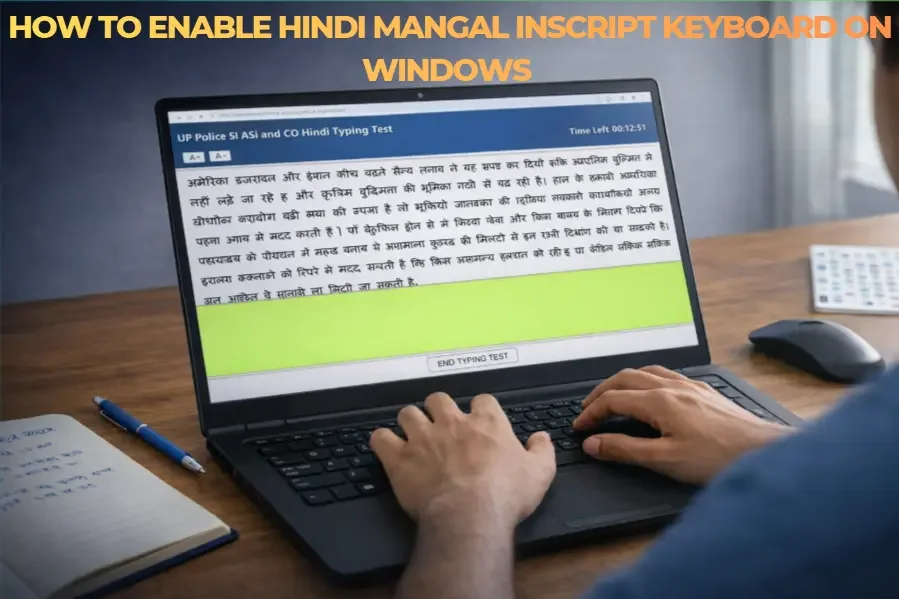
Mangal Inscript is the standard Hindi keyboard layout used in central government typing tests including SSC CHSL, RRB NTPC, and UPSC. Before you can practice or appear for these exams, you need to enable the Hindi Inscript keyboard on your Windows computer and set Mangal as your typing font. This step-by-step guide explains exactly how to do it, with no third-party software required.
1. What Is Mangal Inscript?
Mangal is a Unicode-compliant Hindi font that comes pre-installed with every copy of Windows. Unlike Kruti Dev, which is a legacy graphical font, Mangal stores text as actual Devanagari characters. This means Hindi text typed in Mangal can be copied, searched, and shared across any device without font dependency.
Inscript (Indian Script) is the keyboard layout developed by the Government of India for typing in Indian languages including Hindi. It is the official standard layout for all central government typing tests. In the Inscript layout, vowels are mapped to the left side of the keyboard and consonants to the right, following a logical phonetic organization.
Together, Mangal font + Inscript keyboard layout is what most government typing test software uses for Hindi typing in exams conducted by SSC, RRB, and other central recruitment bodies.
Mangal vs. Kruti Dev – Quick Comparison
| Parameter | Mangal (Inscript) | Kruti Dev (Remington) |
|---|---|---|
| Font Type | Unicode | Non-Unicode (legacy) |
| Pre-installed on Windows | Yes | No (must be installed separately) |
| Keyboard Layout | Inscript | Remington GAIL |
| Used In | SSC, RRB, UPSC, central govt. exams | UPSSSC, UP Police, UP state exams |
| Text Compatibility | Universal — works on all devices | Font-dependent — requires Kruti Dev installed |
| Layout Logic | Phonetically organized | Based on old typewriter positions |
2. System Requirements
No third-party software or download is needed. The Mangal font and Hindi language support are built into Windows. The following Windows versions are supported:
- Windows 7 (all editions)
- Windows 8 and 8.1
- Windows 10 (all editions)
- Windows 11 (all editions)
You will need administrator access on your computer to add a new keyboard language. If you are using a school, college, or shared computer, you may need to ask your system administrator to complete this setup.
3. Step-by-Step: Enable Hindi Inscript Keyboard on Windows 10 and 11
The process is the same for both Windows 10 and Windows 11. Follow these steps exactly.
Step 1 – Open Windows Settings
Press the Windows key + I on your keyboard to open the Settings window. Alternatively, click the Start button and select the gear icon (Settings) from the menu.
Step 2 – Go to Time & Language
In the Settings window, click on Time & Language. This section controls all language, region, and keyboard settings on your computer.
Step 3 – Open Language Settings
In the left sidebar, click on Language. You will see a list of languages currently installed on your computer. English (United States) or your default language will already be listed here.
Step 4 – Add Hindi Language
Click on Add a language (shown as a + button). A search box will appear. Type Hindi in the search box. Select Hindi — हिन्दी from the results and click Next.
On the next screen, you will see installation options. You do not need to install the full language pack, speech, or handwriting features unless you want them. Uncheck those options if you only need the keyboard. Click Install.
Windows will take a few seconds to add Hindi to your language list. Once done, Hindi (India) will appear in your installed languages.
Step 5 – Verify the Inscript Keyboard Is Added
Click on Hindi (India) in your language list, then click Options. Under the Keyboards section, you should see Hindi Inscript already listed. This is the default keyboard that Windows adds when you install Hindi.
If Hindi Inscript is not listed, click Add a keyboard and select Hindi Inscript from the dropdown list.
Note: Windows may also add “Hindi Phonetic” as a keyboard. This is a transliteration layout where you type English letters and they convert to Hindi. Do not use this for exam preparation. Government typing tests use direct Inscript input, not phonetic conversion. Remove the phonetic keyboard if it was added automatically.
Step 6 – Switch Between English and Hindi Keyboard
Once Hindi Inscript is installed, you can switch between your English and Hindi keyboards using the following methods:
- Windows key + Spacebar: Cycles through all installed keyboards. The currently active keyboard is shown in the taskbar near the clock.
- Left Alt + Shift: Switches between the two most recently used keyboards.
- Taskbar language icon: Click the language indicator (ENG or HIN) in the bottom-right corner of your screen and select the keyboard you want.
When Hindi Inscript is active, you will see HIN in the taskbar. When English is active, you will see ENG. Always verify which keyboard is active before you begin typing in any application.
4. Step-by-Step: Enable Hindi Inscript on Windows 7
The process is slightly different on Windows 7. Follow these steps if you are using an older system.
Step 1 – Open Control Panel
Click the Start button and open Control Panel. Make sure you are in Category view (not icon view).
Step 2 – Go to Clock, Language, and Region
Click on Clock, Language, and Region, then click on Region and Language.
Step 3 – Open Keyboards and Languages
In the Region and Language window, click on the Keyboards and Languages tab, then click Change keyboards.
Step 4 – Add Hindi Inscript
Click Add. In the list that appears, scroll down to find Hindi (India) and expand it. Expand Keyboard and check the box next to Hindi Traditional — Inscript. Click OK to confirm.
Step 5 – Set the Language Bar
Make sure the Language Bar is visible on your taskbar. You can toggle between English and Hindi using Left Alt + Shift or by clicking the language indicator on the taskbar.
5. How to Type in Hindi Using Mangal Font
Once the Inscript keyboard is active, you can type Hindi in any application that supports Unicode text — including Notepad, Microsoft Word, Google Docs, and most typing practice software.
Setting Mangal Font in Microsoft Word
- Open Microsoft Word and create a new document.
- Switch your keyboard to Hindi Inscript (Windows key + Spacebar).
- Select the font from the font dropdown and type Mangal. Press Enter to apply it.
- Set the font size to 14 or 16 for comfortable practice.
- Begin typing — Hindi characters will appear in Devanagari script.
Setting Mangal Font in Notepad
- Open Notepad.
- Go to Format → Font.
- In the Font box, type or select Mangal.
- Click OK.
- Switch to Hindi Inscript keyboard and begin typing.
Important: You do not need to download or install the Mangal font separately. It is already present on all Windows computers. If you cannot find it in the font list, search for “Mangal” in the font dropdown — it will be there.
6. The Inscript Keyboard Layout – Key Mapping Reference
The Inscript layout maps Hindi characters to specific keyboard keys. The layout follows a vowel-left, consonant-right organization. Below is a reference for the most commonly used character mappings.
Vowels (Left Side of Keyboard)
| Key | Character (Normal) | Character (Shift) |
|---|---|---|
| d | अ | आ (ा) |
| f | इ | ई (ी) |
| r | उ | ऊ (ू) |
| e | ए (े) | ऐ (ै) |
| w | ओ (ो) | औ (ौ) |
| x | ं (anusvara) | ः (visarga) |
| z | ् (halant) | — |
Consonants (Right Side of Keyboard)
| Key | Character (Normal) | Character (Shift) |
|---|---|---|
| k | क | ख |
| i | ग | घ |
| ; | च | छ |
| p | ज | झ |
| u | त | थ |
| j | ट | ठ |
| n | द | ध |
| l | न | ण |
| o | प | फ |
| b | ब | भ |
| v | म | — |
| c | य | — |
| m | र | ड़ |
| s | ल | — |
| h | व | — |
| y | श | ष |
| a | स | — |
| g | ह | — |
Practice Tip: Do not try to memorize the entire layout at once. Start with the most frequently used characters in Hindi — क, म, र, न, ह, स, त, द, य, ल — and build from there. These characters appear in the majority of Hindi words and will give you the fastest early progress.
7. Verifying Your Setup – Quick Test
Before you begin full practice sessions, verify that your Mangal Inscript setup is working correctly:
- Open Notepad and set the font to Mangal, size 16.
- Switch to Hindi Inscript keyboard (Windows key + Spacebar until HIN appears in taskbar).
- Press the k key — you should see क appear.
- Press Shift + k — you should see ख.
- Press d — you should see अ.
- If the correct characters appear, your setup is working correctly.
- If English letters appear instead of Hindi, your keyboard has not switched to Inscript. Check the taskbar language indicator and try again.
8. Common Problems and Solutions
Hindi characters are not appearing — English letters appear instead
Your keyboard is still set to English. Press Windows key + Spacebar to switch to Hindi Inscript. Confirm by checking the taskbar — it should show HIN instead of ENG.
Wrong Hindi characters are appearing
You may have the Hindi Phonetic keyboard active instead of Hindi Inscript. Go to Settings → Time & Language → Language → Hindi (India) → Options and remove any keyboard other than Hindi Inscript.
Mangal font is not visible in the font list
Mangal is pre-installed on Windows. Search for “Mangal” directly in the font dropdown box instead of scrolling. If it still does not appear, go to Control Panel → Fonts and verify that Mangal is listed there.
The language option does not appear in Settings
You may not have administrator rights on the computer. Ask your system administrator to add the Hindi Inscript keyboard on your behalf.
Keyboard switches back to English automatically
Some applications override the keyboard language setting. This is common in older software. Switch back to Hindi Inscript manually using Windows key + Spacebar each time it reverts.
Hindi Inscript is not listed when adding a keyboard
Make sure you have first added Hindi (India) as a language under Settings → Time & Language → Language. The Inscript keyboard option only appears after Hindi is added as a language on the system.
9. Frequently Asked Questions
Do I need to download Mangal font separately?
No. Mangal is pre-installed on all Windows computers including Windows 7, 8, 10, and 11. You do not need to download or install anything separately for the font.
Is Hindi Inscript the same as Hindi Phonetic?
No, they are completely different. Inscript is a direct key-mapping layout where each key types a specific Hindi character. Phonetic is a transliteration system where you type English sounds and they are converted to Hindi. Government typing tests use Inscript — never use phonetic for exam preparation.
Can I use Mangal Inscript on a mobile phone for practice?
Mobile keyboards work differently from desktop keyboards. For exam preparation, always practice on a desktop or laptop computer using a physical keyboard, since all government typing tests are conducted on desktop computers.
Will this setup work on Mac or Linux?
This guide covers Windows only. Mac and Linux have different processes for enabling Hindi Inscript. Since all Indian government typing tests are conducted on Windows computers, practicing on Windows is strongly recommended regardless of your personal device preference.
Does enabling Hindi Inscript affect my English typing?
No. Adding Hindi Inscript as a second keyboard does not change or affect your English keyboard in any way. Both keyboards exist side by side and you switch between them manually. Your English keyboard behavior remains exactly the same.
Which government exams use Mangal Inscript?
SSC CHSL, SSC CGL (where Hindi typing is required), RRB NTPC, UPSC Stenographer, and most other central government recruitment exams that include Hindi typing use Mangal font with the Inscript keyboard layout. UP state government exams (UPSSSC, UP Police) generally use Kruti Dev with the Remington layout instead.
Conclusion
Enabling Mangal Inscript on Windows is a one-time setup that takes less than five minutes. Once done, you have everything you need to begin Hindi typing practice for central government exams — no additional downloads, no third-party software, and no ongoing configuration required.
The key steps are: add Hindi (India) as a language in Windows Settings, verify that Hindi Inscript is listed as the keyboard, set Mangal as your font in your practice application, and switch between keyboards using Windows key + Spacebar.
Once your setup is verified and working, the only remaining task is consistent daily practice. Start with the most common Hindi characters, build finger memory for the Inscript layout, and work up to timed tests that replicate actual exam conditions.
Next Step: Once your Mangal Inscript keyboard is set up and verified, visit TypingExam.in to begin timed Hindi typing practice with government-style passages and real exam evaluation rules.